English
Even though an 8K optical HDMI cable is designed to provide long-distance, interference-free transmission, problems can still arise if it's installed incorrectly, used with incompatible devices, or mishandled during setup. The most common issues include signal loss, interference, and directionality errors.
The good news? Almost all of these problems can be solved with the right troubleshooting approach and best practices. Let's go through them one by one.
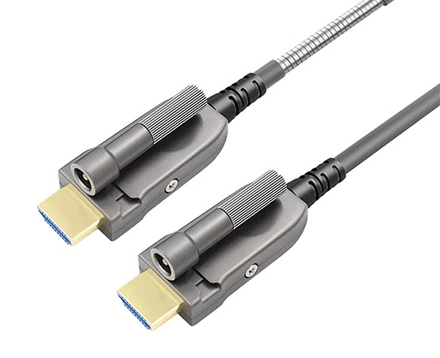
8K optical hdmi cables are engineered to eliminate attenuation over long distances. However, users sometimes still experience flickering, black screens, or reduced resolution. Common causes include:
Poor-quality cable construction (cheap, uncertified products that don't meet HDMI 2.1 specs).
Improper termination or connector damage.
Exceeding the optical cable manufacturer's rated maximum distance.
Compatibility issues between devices and HDMI 2.1 bandwidth.
Use certified cables: Always choose cables tested to deliver the full 48 Gbps required for 8K.
Check connector condition: Bent pins or dust inside HDMI ports can disrupt transmission.
Stay within rated distance: Most fiber HDMI cables are reliable up to 50–100m. Don't exceed manufacturer recommendations.
Verify device compatibility: Ensure your source (GPU, console, Blu-ray) and display (TV, projector) both support HDMI 2.1.
Expert Tip: For professional installations, always test the cable at full 8K@60Hz or 4K@120Hz load before finalizing.
One of the biggest advantages of fiber HDMI is that light signals are immune to EMI (electromagnetic interference). However, interference-related symptoms may still occur due to:
Hybrid fiber-copper cable design: Some models use copper for control signals (EDID, HDCP), which can pick up noise.
External power supplies or poorly shielded devices.
Running HDMI alongside high-voltage power lines.
Choose full-fiber designs: For EMI-heavy environments (factories, hospitals), use all-fiber HDMI solutions.
Separate cable runs: Keep HDMI cables away from AC power lines, fluorescent lights, and heavy machinery.
Check grounding: Ensure AV racks and connected devices are properly grounded.
Expert Insight: While pure interference issues are rare with fiber HDMI, hybrid designs can still behave like copper if poorly engineered.
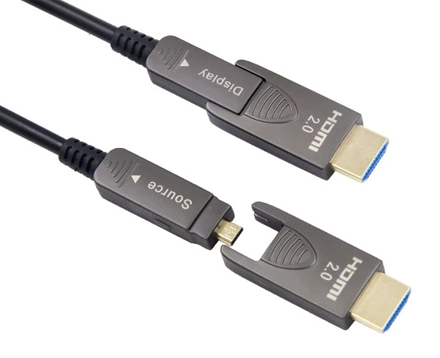
Unlike copper HDMI cables, fiber HDMI cables are directional. They have:
Source end: Must connect to the output device (e.g., Blu-ray, PC, console).
Display end: Must connect to the TV, monitor, or projector.
If reversed, the cable simply won't work.
Check labeling: Quality cables are clearly marked "Source" and "Display."
Train installers: Ensure AV technicians understand that optical fiber HDMI cables are not reversible.
Do not force connections: Reversing them won't damage devices, but it will result in a blank screen.
Practical Example: In large-scale installations, mislabeled ends are a leading cause of "dead cable" complaints. Always verify orientation before testing.
Even if the cable is fine, users sometimes can't achieve 8K@60Hz or 4K@120Hz. Instead, the system defaults to lower resolutions like 4K@60Hz. Causes include:
Source or display doesn't support HDMI 2.1.
AV receivers or switchers in the chain are limited to HDMI 2.0.
Incorrect device settings (output forced to lower resolution).
Check HDMI version support: Both ends must support HDMI 2.1 features.
Eliminate weak links: If an AV receiver only supports HDMI 2.0, it bottlenecks the chain.
Adjust settings manually: Enable 4K/8K Enhanced Mode or HDMI Ultra HD Deep Color in device menus.
Fiber optic strands are thinner and more fragile than copper. Sharp bends, crushing during installation, or pulling with too much force can damage fibers.
Respect bend radius: Never exceed the manufacturer's minimum bend radius (often 20–30mm).
Use cable guides: In conduit installations, use smooth pathways without sharp corners.
Avoid over-pulling: Fiber HDMI is lightweight; excessive force is unnecessary.
Expert Practice: Always test cables before sealing walls or conduits. Replacing damaged fiber HDMI after installation is costly.
Extreme temperatures, humidity, or dust can affect connectors or weaken cable jackets over time.
Use industrial-grade HDMI fiber cables with reinforced jackets.
Seal connections in dusty or humid environments.
Avoid running cables in areas exposed to direct sunlight or extreme heat.
Why is my 8K HDMI fiber cable not working?
Check directionality (Source vs Display ends), device compatibility (HDMI 2.1 support), and ensure the cable is certified for 48 Gbps.
Can fiber HDMI cables suffer from signal loss?
Not typically, but poor-quality cables, damaged fibers, or exceeding distance limits (100m+) can cause dropouts.
Are HDMI fiber optic cables fragile?
Yes, compared to copper. They must not be bent too tightly or crushed during installation.
Do fiber HDMI cables introduce latency?
No. Signal conversion is real-time with negligible delay, making them suitable for gaming and broadcasting.
How do I test an HDMI fiber optic cable?
Use a certified 8K/4K source and display, set to maximum resolution (8K@60Hz or 4K@120Hz), and check for stability without flickers or blackouts.
Buy certified products — look for Ultra High Speed HDMI certification.
Pre-test before installation — verify signal stability under full load.
Label and train — prevent directionality errors in large-scale projects.
Use proper cable management — protect fibers from bends, crushing, and EMI exposure.
Plan for future-proofing — choose cables rated for 48 Gbps to avoid replacements later.
Home Theaters: Projectors with long HDMI runs (10–20m).
Conference Rooms: Reliable UHD for presentations and video conferencing.
Digital Signage: Airports, malls, and stadiums where 50–100m runs are common.
Medical Imaging: Interference-free high-resolution video in operating rooms.
Broadcast Studios: Zero-latency 8K feeds during live productions.
In all these environments, the difference between a certified, properly installed fiber HDMI cable and a poor-quality one is massive.
While an 8k HDMI fiber optic cable solves many of the problems that plague copper HDMI cables—distance limits, signal loss, and interference—it is not completely immune to issues. The most common problems users encounter include:
Signal loss from poor cable quality or device mismatch.
Interference in hybrid designs or poor installations.
Directionality errors from reversed connections.
Physical damage due to improper handling.
The solutions are straightforward: choose certified cables, respect installation guidelines, and verify HDMI 2.1 compatibility across your system.
For home theaters, digital signage, corporate AV, and medical imaging, reliability is non-negotiable. Investing in the right 8K HDMI fiber optic cable ensures flawless signal transmission, future-proof performance, and fewer costly troubleshooting sessions.
Copyright © Shenzhen Fiberlink Tech Co., Ltd. All Rights Reserved. Trusted Partners:https://www.aocfiberlink.com/